Install and start
This page is for your first time: it starts from a computer that has never run DeepSeek Harness (DSH), installs dsh-mnemon, and ends with a conversation that uses your first memory. It takes about ten minutes. Already using DSH? Skip to step 3.
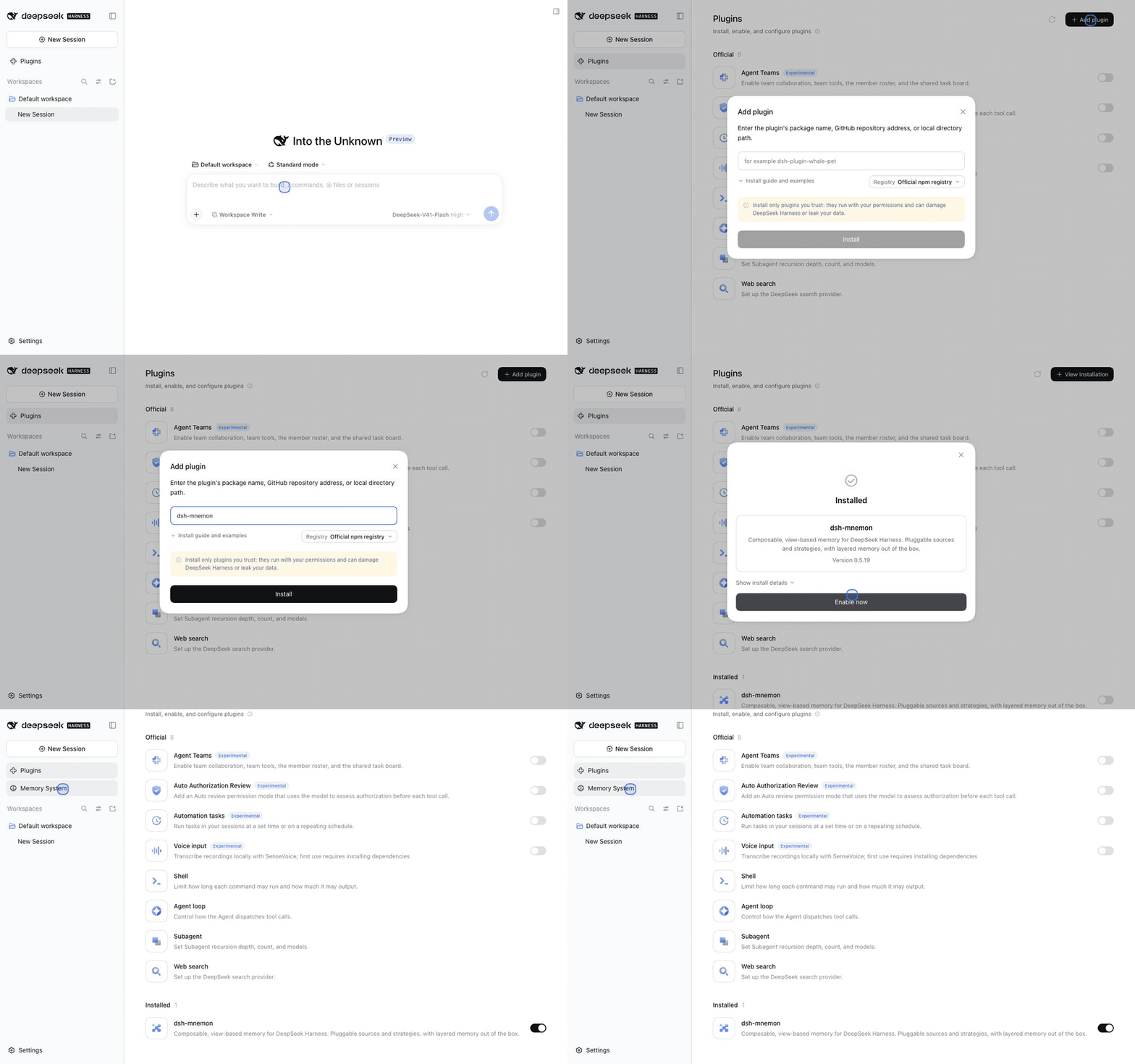
The screenshots and recordings come from real DSH 0.2.0-rc.1 and dsh-mnemon 0.5.19; the installation gallery describes how they were captured.
Choose how you use DSH
| Way | Suits | Where to install dsh-mnemon |
|---|---|---|
| Web (recommended) | Using DSH in a browser; the easiest start | Plugins → Add plugin in the web sidebar |
| Desktop app | You already have the DeepSeek Harness desktop app | Plugins → Add plugin in the app's sidebar; see Desktop app |
| Command line and Headless | Servers, scripts and one-shot jobs | dsh plugin --profile <name> add dsh-mnemon; see Command line and Headless |
All three install the same dsh-mnemon. By default your memory lives in ~/.mnemon on the computer, and the web page and the desktop app share it.
1. Get Node.js, pnpm and the Mnemon CLI
| Tool | What it is for | Needed |
|---|---|---|
| Node.js 22.19 or later (22 or 24 LTS recommended) | Runs DSH | Yes |
| pnpm | DSH calls it to install plugins; without it the Plugins page says pnpm was not found | Yes |
| Mnemon CLI | Mnemon Native, the default local storage for Memory Spaces, needs it; runtime memory and Project Documents do not | Recommended; you can add it later |
With Node.js installed, run these in a terminal (PowerShell on Windows):
node --version
npm install --global pnpm
npm install --global @mnemon-dev/mnemon@latest
mnemon --version
Both --version commands should print a version. Homebrew, Go and a manual Windows installation are covered in Other ways to install the Mnemon CLI.
2. Start DSH
npx @deepseek-ai/dsh webDSH starts at http://127.0.0.1:3080 and opens a one-time link in your browser; the terminal prints the same link. Keep the terminal open while you use DSH, and press Ctrl+C to stop it.
- This runs the DSH release tagged
lateston npm (0.1.7-rc.2 at the time of writing). For the DSH 0.2 preview, runnpx @deepseek-ai/dsh@next webinstead. dsh-mnemon supports both from 0.5.19. - If you use DSH often, install it globally with
npm install --global @deepseek-ai/dshand then rundsh web; the command line needs the globaldshtoo.
The first time you open it:
- DSH 0.2 shows a Preview Notice first. Click Continue.
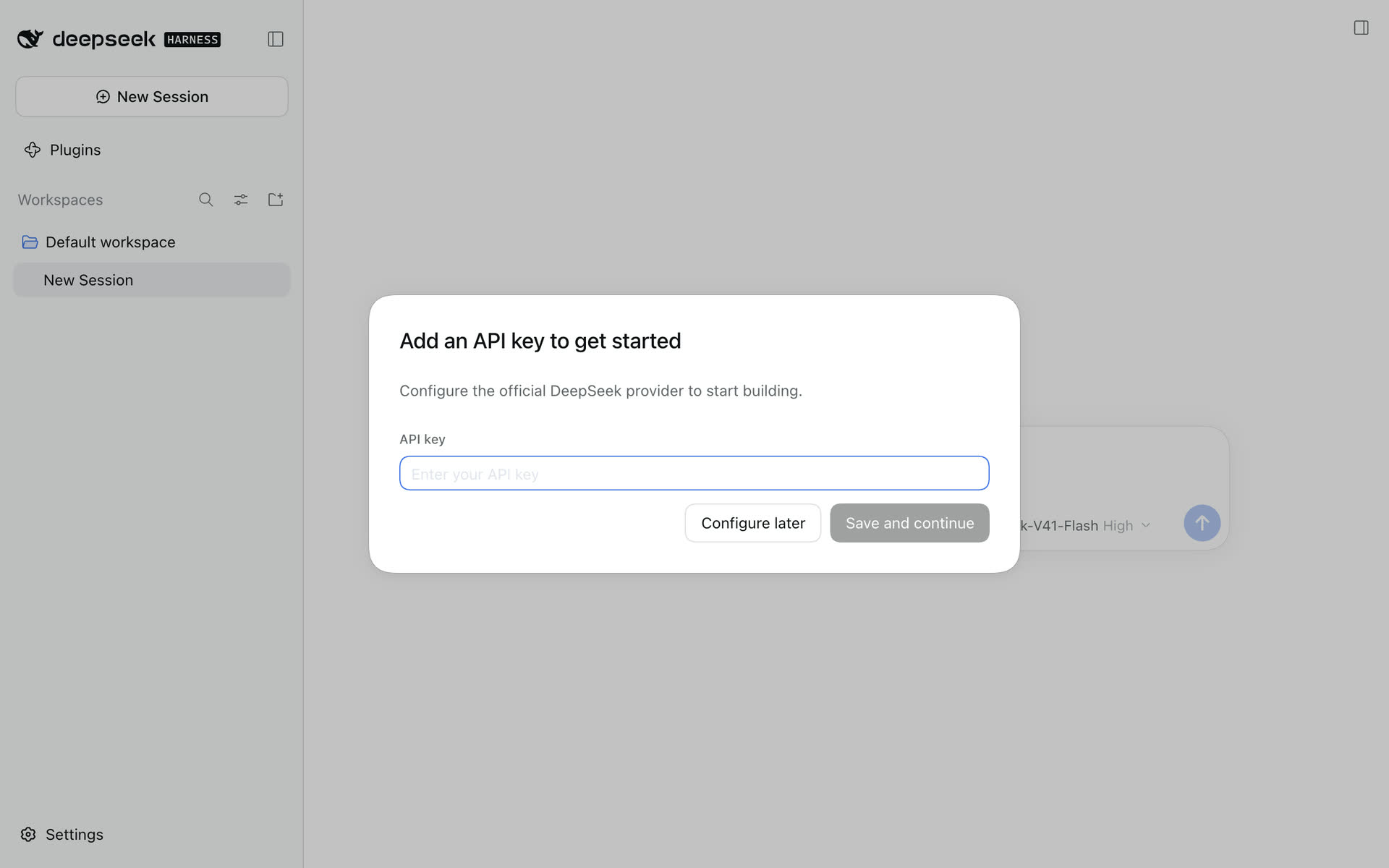
- In Add an API key to get started, paste an API key you created on the DeepSeek Platform and click Save and continue. You can also click Configure later and add it in Settings afterwards; installing plugins needs no key, conversations do.
3. Install and enable dsh-mnemon
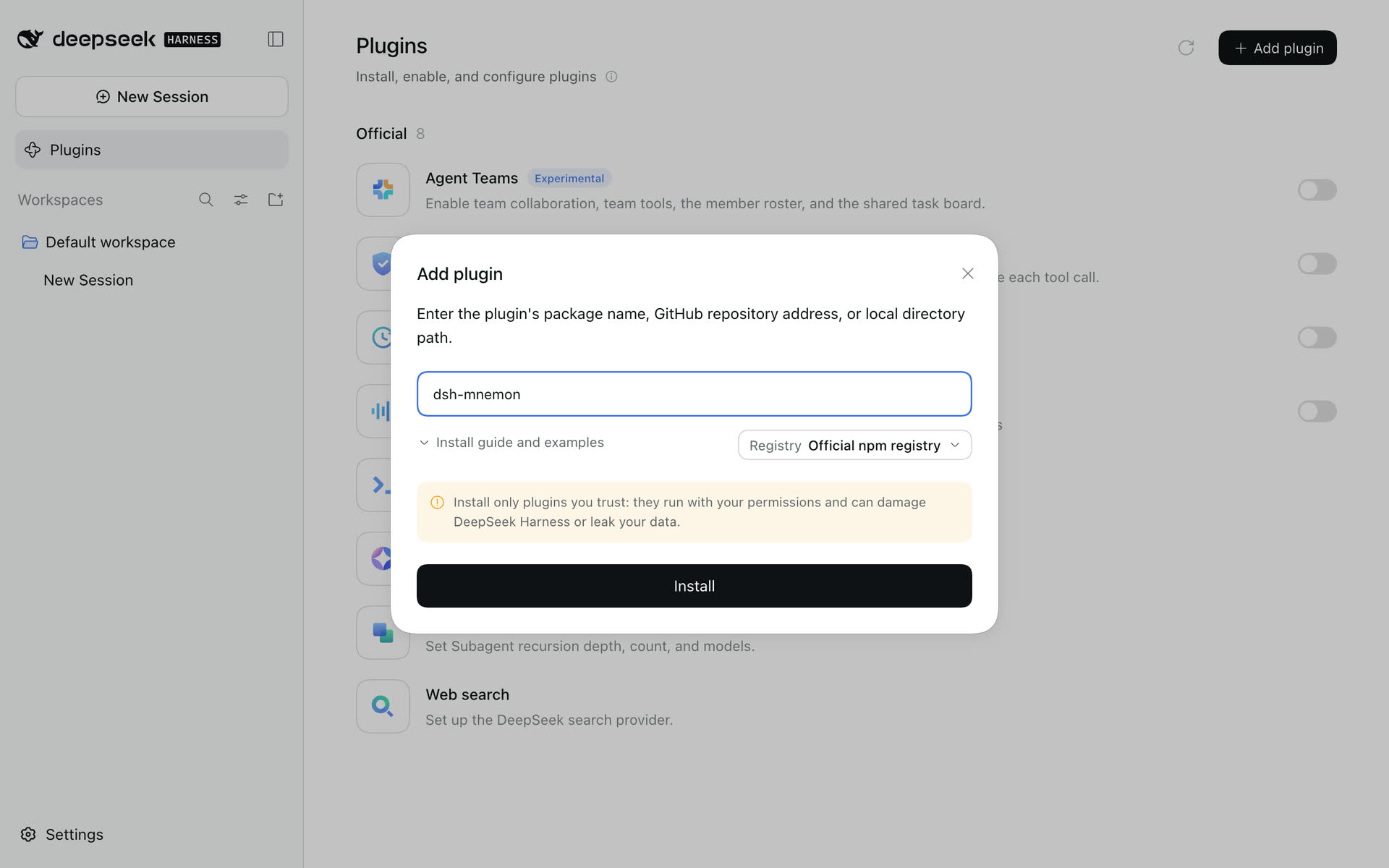
- Click Plugins in the sidebar, then Add plugin in the top right corner.
- Type
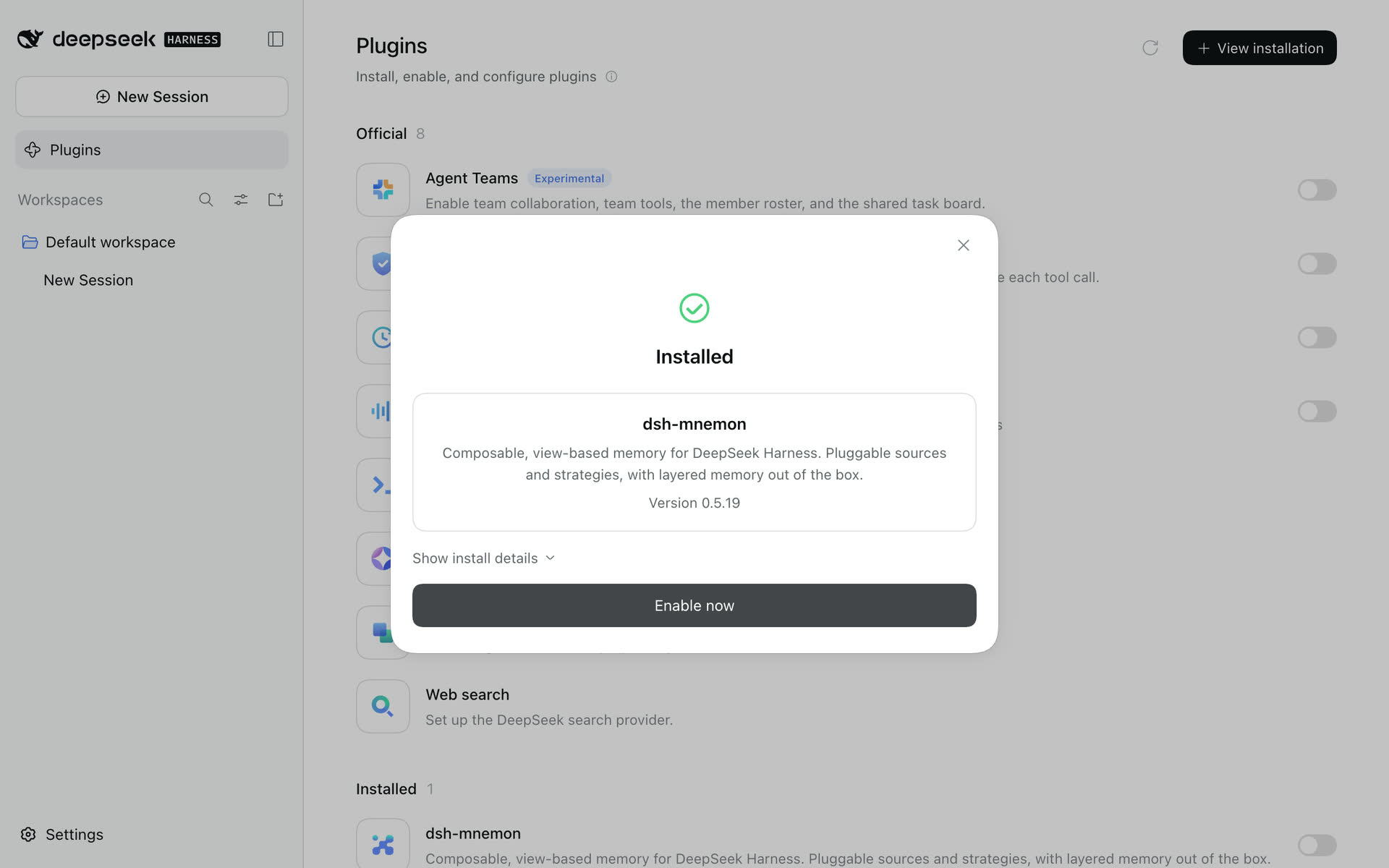
dsh-mnemonand click Install. DSH picks the Registry on the right of the dialog: usually the Official npm registry, or the Mainland China mirror in mainland China. You rarely need to change it. - After a few seconds the dialog says Installed with the version. Click Enable now; DSH does not need a restart.
- Memory System appears in the sidebar. That is it.
| Type the package name and install | Installed; enable it now |
|---|---|
 |
 |
If you prefer the command line, you can install with the command below and then start DSH as in step 2; if DSH is already running, restart it after installing:
npx @deepseek-ai/dsh plugin --profile web add dsh-mnemon4. Check the installation
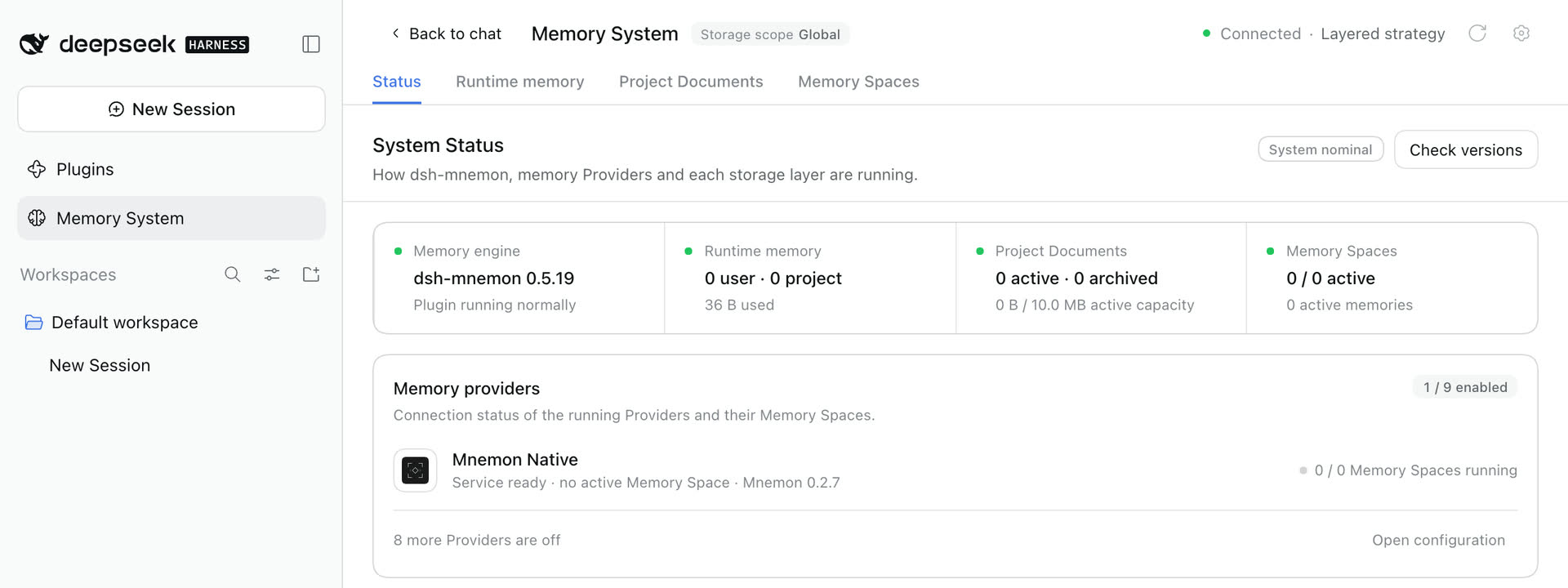
Click Memory System. It opens on Status:
- the header says Connected · Layered strategy;
- the Memory engine card shows
dsh-mnemon 0.5.19or later; - with the Mnemon CLI installed, Mnemon Native under Memory Providers reads "Service ready" with the CLI version. Without it, it reads "Mnemon CLI not found", and runtime memory and Project Documents work as usual.
5. Save your first memory
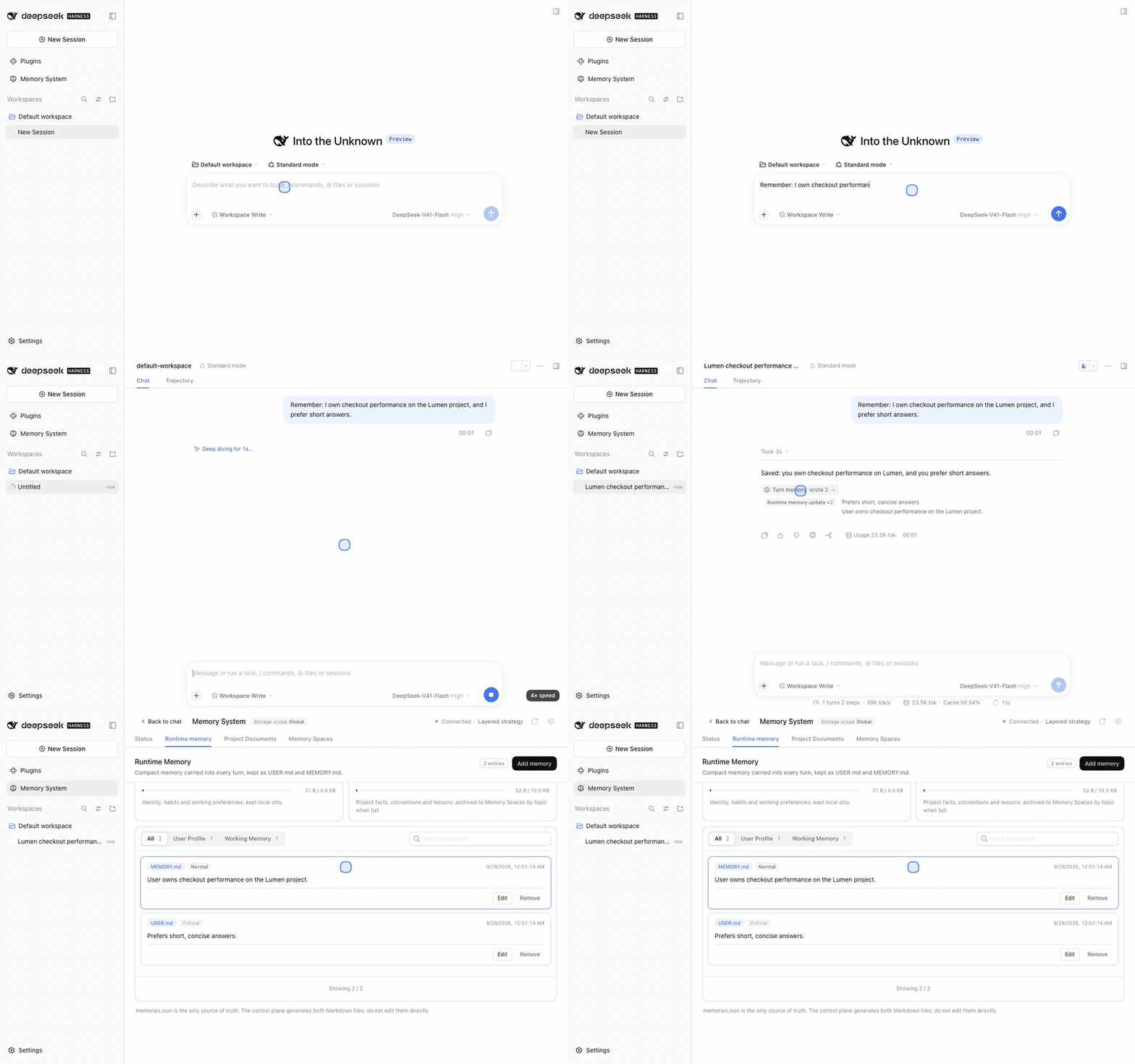
- Click New Session and type something you want remembered, for example:
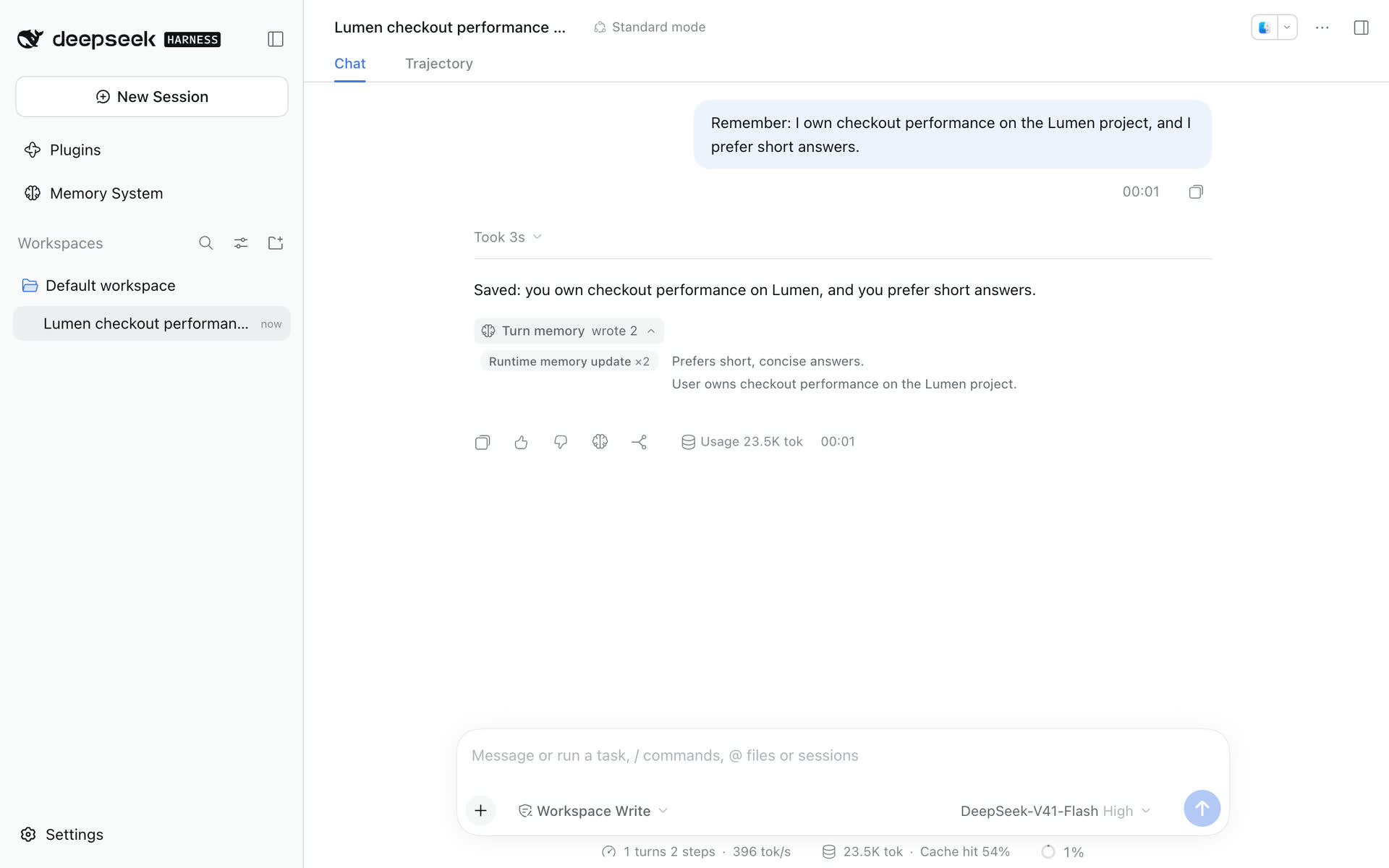
Remember: I own checkout performance on the Lumen project, and I prefer short answers. - Under the reply, Turn memory · wrote appears; expand it to see the runtime memory this turn wrote.
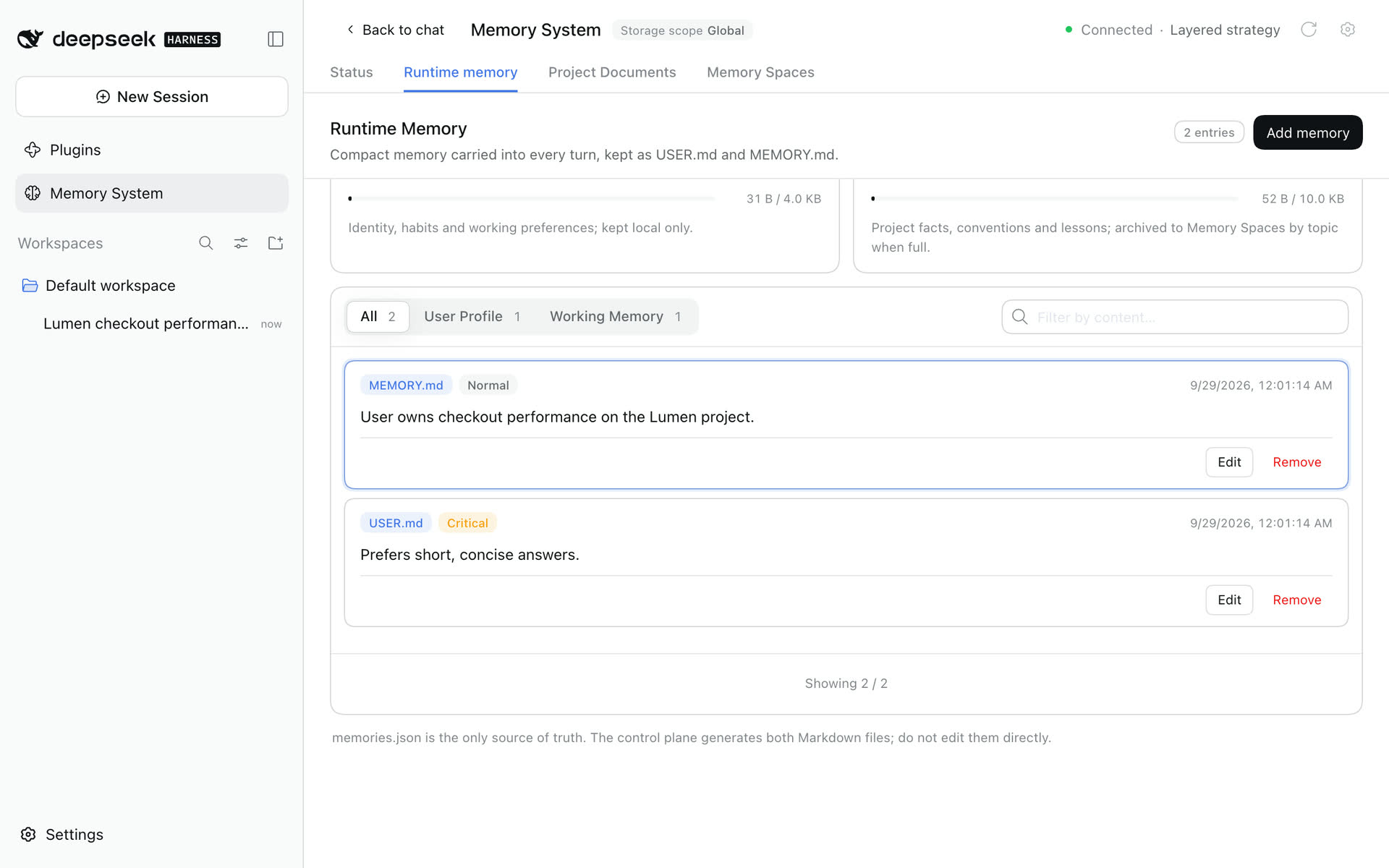
- Click an entry: the Memory System opens Runtime memory with that entry highlighted. Every later turn carries it.
| What this turn wrote | Where it lives |
|---|---|
 |
 |
The model decides the wording and where to write it, so your text may differ. Continue with Getting started: Project Documents, Memory Spaces, and saving a reply with Save to memory.
6. Desktop app
The Plugins page of the DeepSeek Harness desktop app works like the web page: Plugins → Add plugin → type dsh-mnemon → Install → Enable now.
- The desktop app uses its own
desktopprofile. From DSH 0.2 the command line no longer manages that profile, so install and manage plugins on the app's Plugins page. - Desktop windows load from the app's own
dsh-app://app/address. dsh-mnemon 0.5.18 and earlier treated them as remote pages, which made the Memory System and the plugin settings read only (#310). 0.5.19 fixes this; update dsh-mnemon, with no configuration change. - DSH's Plugins page cannot update an installed plugin. Update dsh-mnemon from Memory System → Status → Check versions → Update, which installs the new version with the app's own installer. dsh-mnemon 0.5.21 and earlier cannot do this in the desktop app; update from them once by removing dsh-mnemon on the Plugins page and adding it again. Your memory data stays.
- After updating dsh-mnemon in the desktop app, quit the app completely and open it again (
Cmd+Qon macOS) so the new version loads. If an error appears after an update, see Common problems.
7. Command line and Headless
With DSH installed globally, you can manage each profile's plugins from the command line:
npm install --global @deepseek-ai/dsh
dsh plugin --profile web add dsh-mnemon
dsh web
Profiles keep separate plugin lists. To give one-shot jobs memory too, install it into the Headless profile as well:
dsh plugin --profile headless add dsh-mnemon
dsh --profile headless "Check persistent project context before answering."
Upgrade and uninstall:
dsh plugin --profile web update dsh-mnemon
dsh plugin --profile web remove dsh-mnemon
Restart DSH after upgrading. For 24 hours after a release, pnpm 11 keeps update on the installed version; add the new version by name instead, for example dsh plugin --profile web add dsh-mnemon@0.5.20. Uninstalling removes the plugin, never your memory data. Development checkouts, cloud access and Headless details are in Getting started.
Other ways to install the Mnemon CLI
Only Mnemon Native uses the Mnemon CLI. Install it on the machine that runs DSH. The npm command from step 1 is recommended on macOS, Linux and Windows (Node.js 22+); update it later with mnemon update, or use Status → Check versions when the page recognizes the owning npm installation. If migrating from Homebrew, Go, or a downloaded binary, put npm's global bin directory before the old command on PATH and update any MNEMON_CLI_PATH / mnemon.cliPath override. Restart DSH after changing its environment, then recheck the executable path on Status.
Homebrew Cask remains an alternative on macOS:
brew install --cask mnemon-dev/tap/mnemonGo works on macOS and Linux:
go install github.com/mnemon-dev/mnemon@latestFor a manual installation on Windows, the official release provides ZIP archives for AMD64 and ARM64. The following PowerShell installs v0.2.9 under the auto-discovered per-user Programs directory and verifies it against the published checksum:
$version = '0.2.9'
$arch = if ([System.Runtime.InteropServices.RuntimeInformation]::OSArchitecture -eq 'Arm64') { 'arm64' } else { 'amd64' }
$archiveName = "mnemon_${version}_windows_${arch}.zip"
$releaseBase = "https://github.com/mnemon-dev/mnemon/releases/download/v${version}"
$archive = Join-Path $env:TEMP $archiveName
$checksumFile = Join-Path $env:TEMP "mnemon_${version}_checksums.txt"
Invoke-WebRequest "${releaseBase}/${archiveName}" -OutFile $archive
Invoke-WebRequest "${releaseBase}/checksums.txt" -OutFile $checksumFile
$line = Get-Content $checksumFile | Where-Object { $_.EndsWith("  $archiveName") } | Select-Object -First 1
if (-not $line) { throw "Checksum entry not found for $archiveName" }
$expected = (($line -split '\s+')[0]).ToLowerInvariant()
$actual = (Get-FileHash -Path $archive -Algorithm SHA256).Hash.ToLowerInvariant()
if ($actual -ne $expected) { throw "Checksum mismatch for $archiveName" }
$installDir = Join-Path $env:LOCALAPPDATA 'Programs\mnemon'
New-Item -ItemType Directory -Force -Path $installDir | Out-Null
Expand-Archive -Path $archive -DestinationPath $installDir -Force
$mnemon = Join-Path $installDir 'mnemon.exe'
& $mnemon --version
Go remains an alternative on Windows when a Go toolchain is already available:
go install github.com/mnemon-dev/mnemon@latest
$mnemonBin = go env GOBIN
if (-not $mnemonBin) {
  $mnemonBin = Join-Path (((go env GOPATH) -split ';')[0]) 'bin'
}
$mnemon = Join-Path $mnemonBin 'mnemon.exe'
& $mnemon --version
On Windows, dsh-mnemon discovers native mnemon.exe from PATH, an exported GOBIN or GOPATH, the default %USERPROFILE%\go\bin, %LOCALAPPDATA%\Programs\mnemon, and Program Files. The official npm mnemon.cmd launcher is also supported: dsh-mnemon validates its package and invokes its JavaScript entry with Node, without a shell. Other .cmd and .bat wrappers remain unsupported.
When DSH runs inside an Electron desktop main process, verified npm launchers run with ELECTRON_RUN_AS_NODE=1 in the child process. This covers memory commands, version checks, and npm updates, while preserving saved embedding settings. The desktop application's own environment is unchanged. If the shell disables Electron's runAsNode fuse, point mnemon.cliPath at the platform's native Mnemon binary instead; see Troubleshooting.
If DSH still cannot find the binary, set MNEMON_CLI_PATH, or set mnemon.cliPath as a user setting rather than replacing the plugin's profile patch (see Configuration):
mnemon:
  cliPath: 'C:\Users\alice\AppData\Local\Programs\mnemon\mnemon.exe'
mnemon status opens the effective Store and may initialize data or run upstream migrations, so it is not a side-effect-free installation probe.
Common problems
Installing says "dsh-mnemon@… is incompatible with DSH 0.2.0-rc.1"
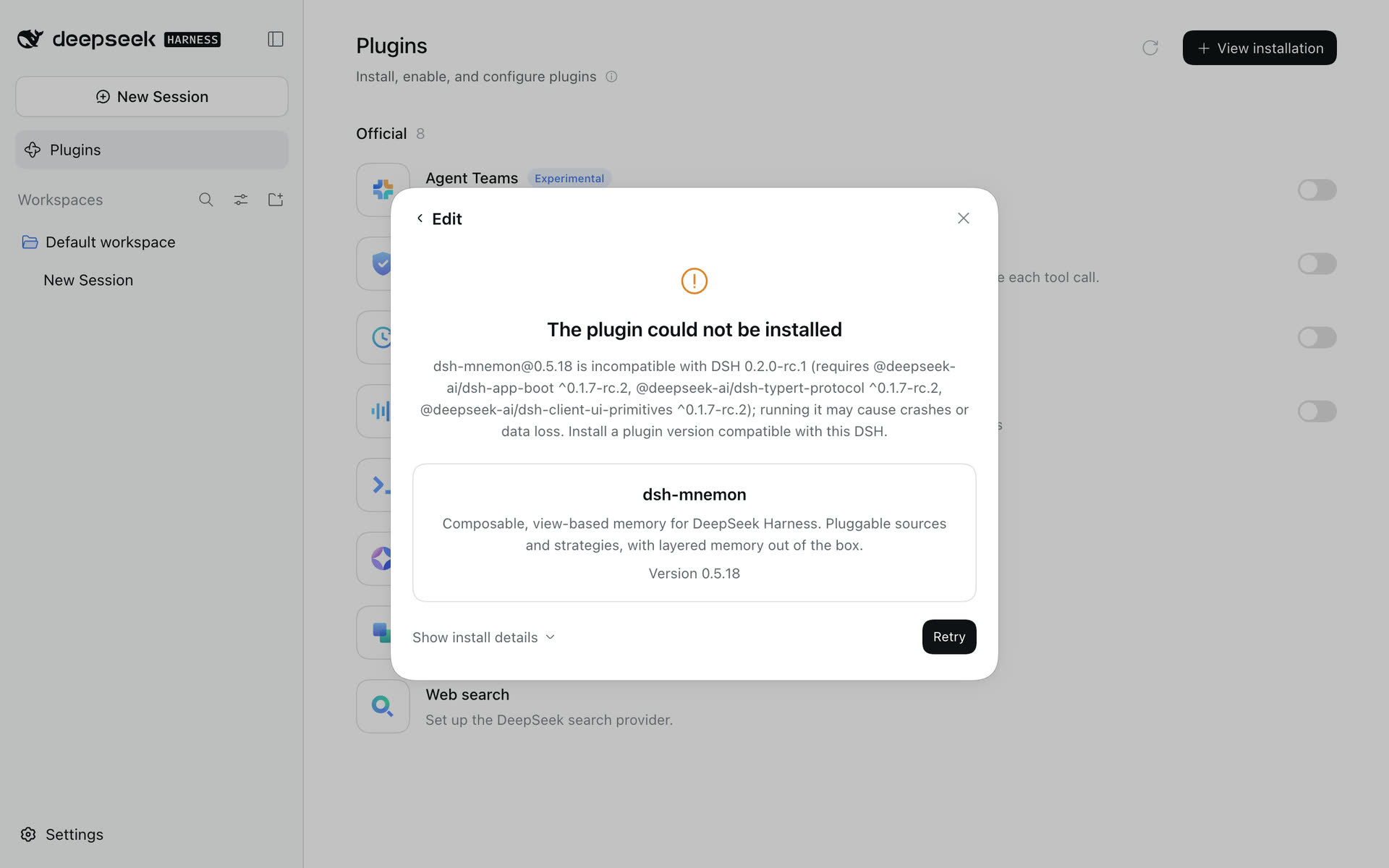
Before DSH installs a plugin, and each time it starts, it checks which DSH versions the plugin declares support for. dsh-mnemon releases before 0.5.19 declare DSH 0.1.7 only, so DSH 0.2 refuses them.
- Check that npm has 0.5.19 or later:
npm view dsh-mnemon version. - For 24 hours after a release, pnpm does not pick the new version by default and installs an earlier one instead, which leads to this message. After two releases within a day it falls back further, for example to 0.5.17. DSH 0.1.7 accepts such an earlier release without a message, so check the version on Status. Click Edit, type the version as well, for example
dsh-mnemon@0.5.25(use the versionnpm viewshows), and click Install; on the command line, rundsh plugin --profile web add dsh-mnemon@0.5.25. Or retry after 24 hours. - A versioned install pins the profile to that version. To upgrade later, run
dsh plugin --profile web update --latest dsh-mnemononce the next release is a day old; within that day, add the new version by name the same way. - Do not accept the risk for an older release with
allow-versionor similar: it really has not been verified on DSH 0.2.
The Plugins page says pnpm was not found
Run npm install --global pnpm, then start DSH again from a new terminal so that DSH finds pnpm on PATH. On the command line the message is pnpm was not found; install pnpm and make it available on PATH.
The registry cannot be reached
Click Registry on the right of the dialog, switch between the Official npm registry and the Mainland China mirror, and retry; on a company network you can enter a custom address.
Status says "Mnemon CLI not found"
Install the CLI as in step 1 and restart DSH. DSH looks for mnemon on PATH and in common install directories; if it still cannot find it, set mnemon.cliPath as described in Other ways to install the Mnemon CLI.
The Memory System is read only when opened from another device
When DSH is opened from another device (for example through an address set up with --trusted-host), the Memory System is read only by default and says why. If you do need remote management, set remoteAccess: trusted-host and restart DSH as the operations guide describes. Desktop app windows and a browser on the same computer are not remote pages.
ERR_PACKAGE_PATH_NOT_EXPORTED after an update
If dsh-mnemon was updated while DSH was running (for example on the desktop app's Plugins page), enabling a component can then show:
Error [ERR_PACKAGE_PATH_NOT_EXPORTED]: Package subpath './starter' is not defined by "exports" in …/node_modules/dsh-mnemon/package.jsonThe new version is installed, but the running DSH still loads it with the old version's package information, which lacks an entry point the new version added: ./starter after an update from 0.5.17 or earlier, ./bundle after an update from 0.5.18 or 0.5.19. After an update from 0.5.18 or 0.5.19 the message can instead read mnemon-bundle (dsh-mnemon/bundle): pending (waiting for service: mnemonStarterReady), because the running DSH keeps the old component group. Either way, quit DSH completely and start it again: Cmd+Q for the desktop app on macOS, or Ctrl+C and then dsh web again on the command line.
On 0.5.18 or 0.5.19, do not turn off dsh-mnemon/starter to make the message go away; that leads to the next problem.
DSH says "waiting for service: mnemonStarterReady"
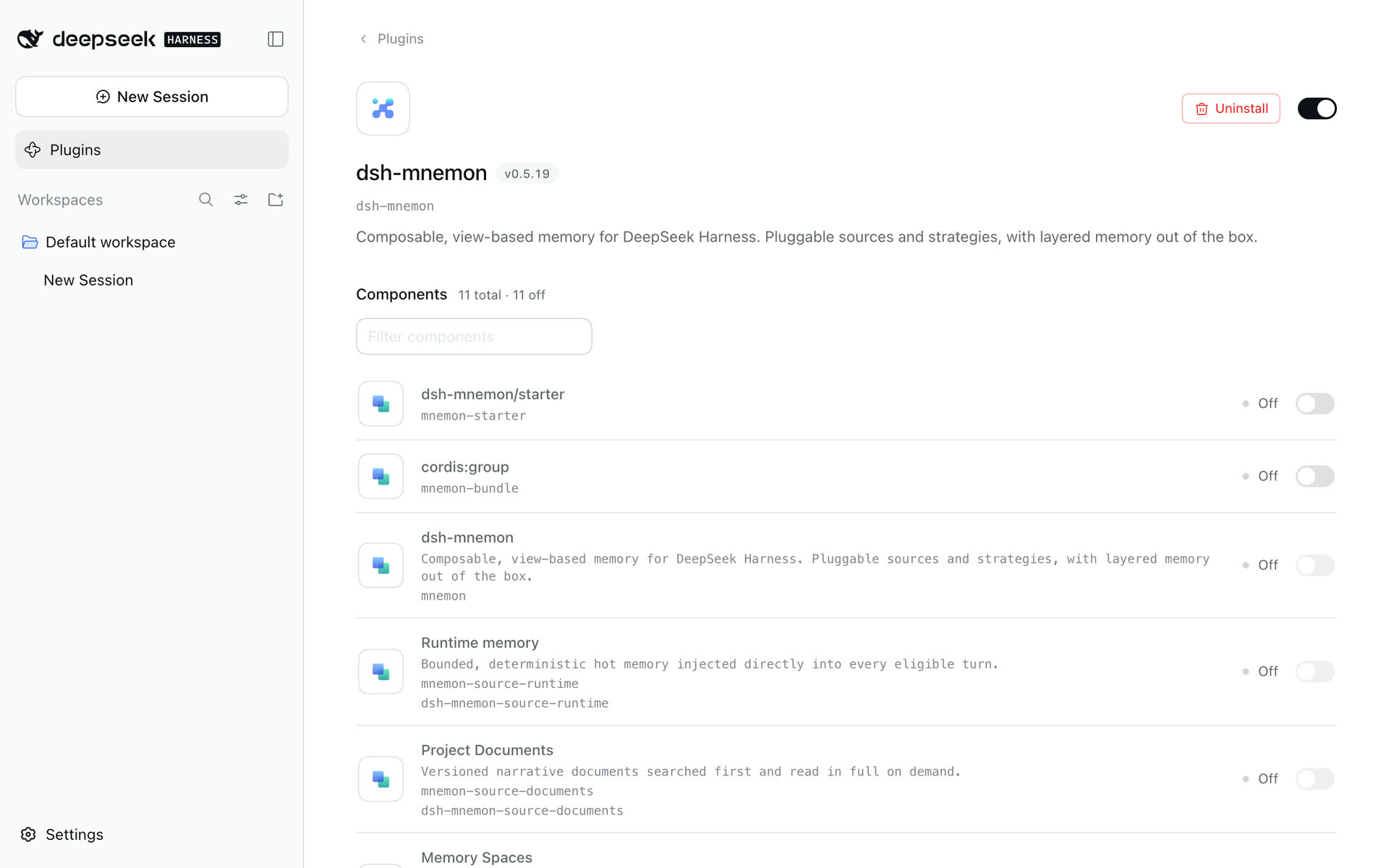
DSH prints this in the terminal when it starts, or shows it when you enable the plugin:
dsh: warning: 1 entry did not activate
mnemon-bundle (cordis:group): pending (waiting for service: mnemonStarterReady)
The sidebar has no Memory System, and every dsh-mnemon component on the Plugins page reads Off. dsh-mnemon/starter has been turned off: in 0.5.18 and 0.5.19 this separate row prepares dependency resolution before the memory components load, and the others wait for it.
- Open Plugins → dsh-mnemon and turn on the
dsh-mnemon/starterrow. The Memory System appears right away; if it does not, restart DSH. - The desktop app treats this as a failed start and shows its plugin recovery page. Click Remove this plugin and continue (your memory data stays), and once the app is up, add dsh-mnemon again as in step 3. Reinstalling 0.5.18 or 0.5.19 keeps the switch off, because the profile saves it, so then turn it on as above.
- From 0.5.20 there is no separate switch: the group prepares dependency resolution itself, and a leftover setting for it is ignored. If the message names
dsh-mnemon/bundle, DSH was updated to 0.5.20 without a restart and still runs the old group; quit DSH completely and start it again.
Moving DSH to 0.2
First run dsh plugin --profile web update dsh-mnemon on your current DSH to get dsh-mnemon 0.5.19 or later, then upgrade DSH. Otherwise DSH 0.2 turns the incompatible older release off when it starts; your memory is untouched and comes back once the plugin is updated. See Compatibility and upgrades for details.